


Now welcoming: the world’s premier deckbuilding game, Dominion, available on mobile devices and Steam. But is it worth the cost? Is it fun? Does it feel like Dominion? Well, I’ve played it so you don’t have to. Let’s dig in, and I’ll answer all of these questions.
The Digital Version—An Instant Value
The new digital version of Dominion costs $0! That’s right, you can get the base game and start playing today with no cash investment. You can play with others locally or online, play against AI, and set different rules for your games. This is a pretty solid starting ground. The best part? It’s cross-platform, including purchases, so you can buy expansions on Steam or mobile and play wherever is convenient for you, without having to stress over separate versions of the game.
Gameplay
The most iconic feature of Dominion is the variability of gameplay. Every time you sit down, you choose the cards that will be in the purchase pool. This gives the game a long shelf-life, as it keeps things from getting bogged down in “perfect” strategies and min-maxers who ruin the game by manipulating choices of other players or buying only the one overpowered card until they win. This pivotal mechanic is what always draws me back to Dominion.

Unfortunately, it can be difficult to figure out how to set up a custom game. In the “New Game” menu, there are three menus for setting up the game. The first menu allows you to assign players, including different AI opponents for differing difficulties. The third tab is for “strictness”, which controls the game’s leniency for things like hitting an undo button. The strictness also affects things like score transparency (showing your deck’s current score, as well as your enemies’), ability to look at discard piles, and a gameplay log. All very useful, but the middle menu, called “Kingdom” is the most vital one to understand if you want to replicate the tabletop version of the game’s unique mechanics.

The Kingdom menu has two buttons. The “Expansions” button allows you to toggle individual expansions as active or inactive, influencing the potential pool of cards. The “+” button is easy to miss, and can easily be mistaken for a “purchase” button, but is actually the entire mechanic for manual selection of cards. This button initially leads to a spread for you to look up cards by name, and select them individually. This is huge for players who are well versed in the game and want control. If you don’t know all of the cards, there’s an included browser that allows you to select any card from any expansion you own, and allows you to select multiple at once, so you don’t have to keep opening the menu every time you select a card. The next button is a row of cards, and is the selection tool for choosing from the many curated sets of cards one might encounter in the base games. I cannot stress how useful this feature is, especially for new players. You can also save all of these settings with a personal save to your account, allowing you to play your favorite variations whenever you like.


The last button on the “+” menu is probably one of my favorite features. This menu allows you to affect specific quality-of-life issues. By clicking on the slider menu button, a player gains access to optional rules, such as the ability to ban or select attacks, shelters, platinum coins, and some of the more annoying mechanics, such as “+2 action” cards. Because a few mechanics can ruin the fun for certain groups, it’s great that one has the option of disabling them. On the other hand, some people love “+2 action” cards so much, they might want to toggle it on, and the same is true for attack and counterattack themes. This puts some serious control in the players’ hands, ensuring the gameplay is as similar to the boardgame version to feel right, with room to improve on some of the quality-of-life issues, which are included in the “Wins” section below.
Wins

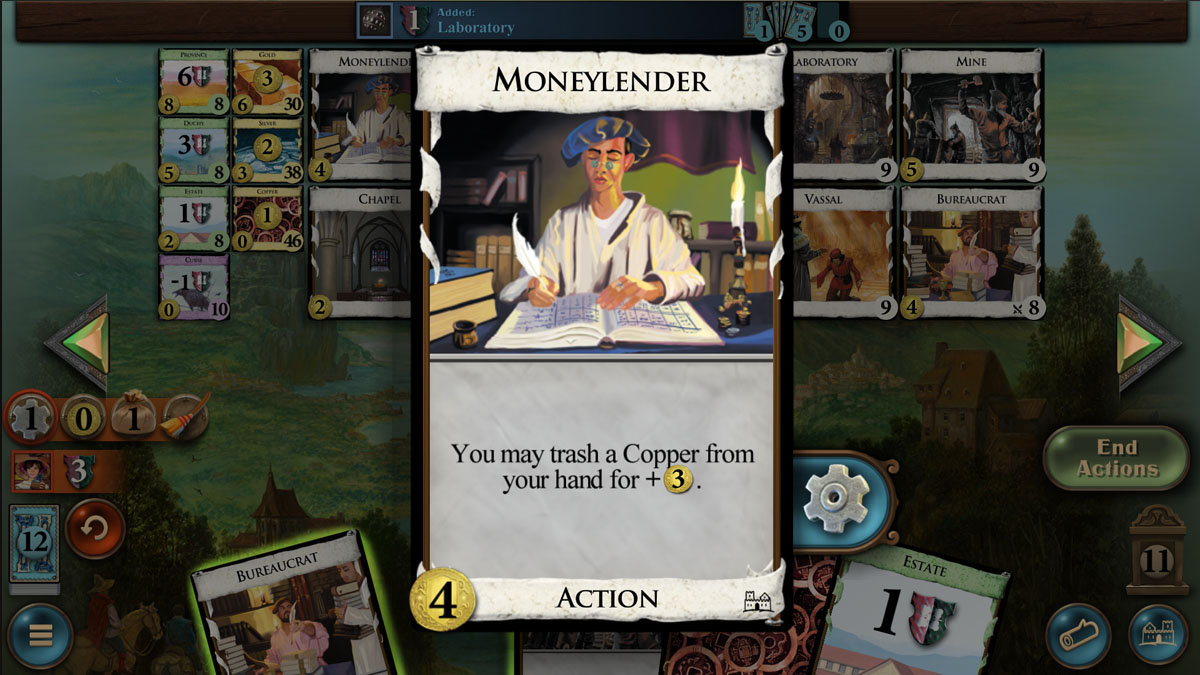
There are some serious quality-of-life wins in the digital version. The automated tracker for your remaining number of actions, purchases, and coins is a great way to help players track what’s still available to them. I’m also a huge fan of the “play all treasures” button which makes it much faster to play a hand with few actions. Finally, the feature that I have found most useful is the highlighter during the purchase phase which quickly shows you which cards you can purchase. This is huge for me, as I have dyscalculia, a number-processing disorder. It’s nice to know that the app will track my coins, actions, and buys, while I worry about playing my cards in the correct order, and that I won’t have to worry about losing track of one or more of my benefits before I end my turn.
Screenshot by Rory Bristol. Assets: Temple Gates Games
The last winning feature I want to touch on is the ability to set game-specific behaviors for cards. Cards which offer an optional mechanic allow you to select a gear on the right of the card. This gear will reveal a niche menu for that card’s behavior for the current game. This allows you to play cards like the Moneylender without risking trashing something you wish to keep. On the other hand, if you just want the effect to be automated, you can set the Moneylender to automatically trash a copper from your hand (so long as you have one) and it won’t require any extra action on your part.
Losses

The only real loss is arguably a benefit, depending on your needs and your device. There is a quality of life feature that I have mixed feelings on, and that’s the button that closes the entire game from inside the app on all devices. While I think it’s great for some users who need more options, I wish it were possible to disable a giant button that closes the app when you’re trying to play on mobile devices. While it can be an accessibility tool to have it – for users that have an easier time with touch screens, for example – it’s a pain for those with tremors or dyspraxia to not be able to disable the button manually, especially after closing the app for the 10th time while trying to explore all of the different menus. Not really a problem on the Steam version, where there is more screen and more nuanced input, but frustrating on mobile, at least for this user.
Final Thoughts
While the Dominion digital game is different in some ways from the tabletop version, there are many more improvements to the game than there are arbitrary or dysfunctional changes. If you want a quick fix, you can jump into a game without buying anything. If you want more variety, you can buy the expansions and packs you’re interested in, with no progression system to limit your choices. There’s a current bundle selling all of the packs and expansions on Steam for $122, which is a surprisingly good value for those that want to own everything. And if you don’t know who to play with, there’s always online play, so I really don’t know what else they could offer, unless what you really want is the physical game.
Diclaimers: The author of this post received in-app content to facilitate this evaluation. Thoughts and opinions are their own. Also, links in this post may contain affiliate codes, which support the author financially at no additional cost to the reader.
Click through to read all of “‘Dominion’ Has Gone Digital” at GeekDad.If you value content from GeekDad, please support us via Patreon or use this link to shop at Amazon. Thanks!

