

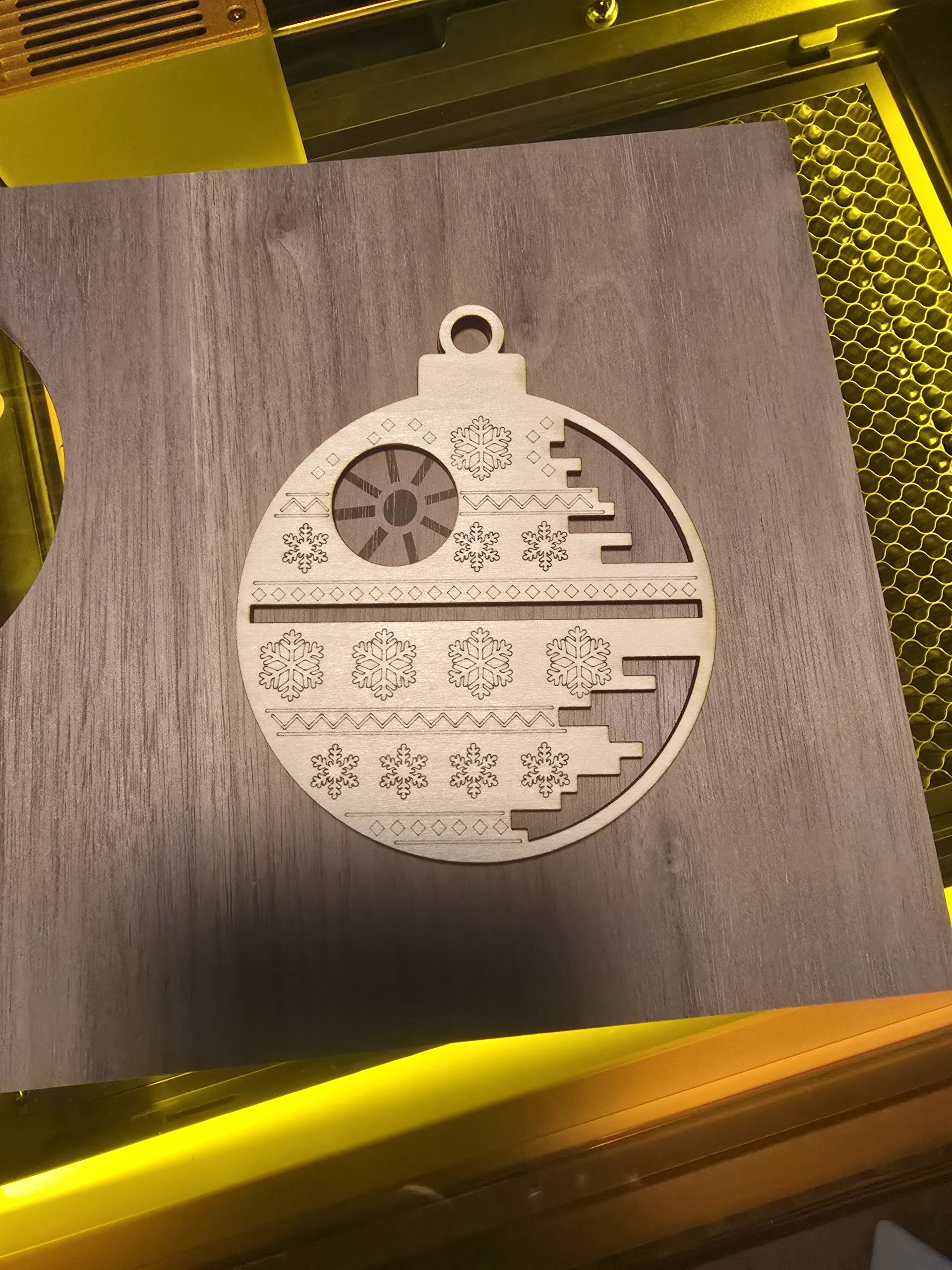
After spending some time with xTool’s M1 Ultra, the other tools in my maker arsenal are feeling sorely neglected. This machine is a laser cutter/engraver, which it’s great at being. But it can also be a blade cutter (e.g. for vinyl), an inkjet printer, and a pen plotter, potentially replacing some other devices or eliminating the need to have them. I love a multitasker, and given that this machine has a fairly sizable footprint, it’s even better for it to do more than one thing. Let’s start by taking a look at each of its functions.

Diode laser
If this is your first laser, I recommend starting with some research based on what you most want to cut or engrave and thus what kind of laser you’re going to need. The M1 Ultra offers a 10W or 20W diode laser. The 10W is recommended for cutting up to 6mm basswood, and the 20W up to 10mm. If you’ve been imagining cutting or engraving harder materials like glass and a variety of acrylic, you’re likely to need a much more expensive CO2 laser.
So what can you cut with the M1? I’ve discovered I can make far more things cutting, engraving, and layering wood than I ever would have thought to do. (See the ornament at the top of this post!) You’ll also be able to use it on plenty of soft things, like leather and cork. When it comes to acrylics, it will work on darker-colored, opaque acrylics, but it’s not going to work on anything transparent, like clear acrylic or to engrave glass. And if you’re thinking it’s time to start engraving your own metal tumblers, there’s a great rotary attachment to help, but you’ll need to coat it first.
If you’re new to lasers and cutting things, your first question is probably, “but if it can cut wood, surely it can cut vinyl?” It’s really a difference of can and should. xTool has a blog post explaining in more detail, but the short answer is that using a laser to cut vinyl can release toxic gasses, and it is likely to have a less clean result than using a blade.
Cutting blade
Conveniently, that’s where the M1 Ultra’s multiple functions come in. If you want to cut vinyl or paper, you can pop in one of several blade options and let it go to work cutting for you. The tapered cutting blade can cut up to 2.5 mm, so thin leathers and craft foam are a go, my cosplaying friends. There’s also a rotary blade if you need help with some detailed fabric cutting.
Inkjet printing module
I’ve taken to hand-coloring a lot of my wood projects with alcohol markers, but sometimes for various reasons, that’s not ideal. It’s super quick to snap in the M1 Ultra’s inkjet module and let it print for you just like any color inkjet printer, except you’re not limited to paper. For example, one of my favorite projects was printing an image on wood using the inkjet module and then putting the laser back on to cut it into a puzzle for my kids.
Pen module
The final piece of the multi-function abilities is the pen module. If you’re familiar with a plotter, or if you’ve ever used a pen in a Cricut/Silhouette/Scan n Cut type device, it’s the same idea: Your own drawing robot.
Lessons learned: Make a test grid
I got a little too brave early on and assumed that settings I found online were a good enough start. My mistake. Here’s how that turned out:

Great news, though. I can confirm that the M1 lets you know when it detects a fire. I was able to quickly take care of the problem with no lasting damage to the machine–or my house! But when it tells you not to leave it unattended, I’m telling you: do not leave it unattended. Do not go downstairs to make dinner/do some laundry/work on something else while the laser runs. The M1 did its job, but if I hadn’t done my part, this story could have had a very different ending.
To prevent that, now before I take the laser to any new material, I use the xTool software’s built-in test grid tool https://support.xtool.com/article/872 to make sure things are going to come out how I expect. There’s still a bit of a learning curve. Sometimes what I think is perfect on the test grid doesn’t work quite the same in the main project. Fortunately, xTool’s products are popular enough that there’s a pretty robust community available to help you out.
In the future
I’ll be back with reports on materials and projects. Meanwhile, I recommend checking out xTool’s Black Friday sales this week. The M1 Ultra is on sale for $999, which is $250 off. You should also check out the materials section. I recommend starting with a large box of 1/8″ basswood. It’s inexpensive and great for learning and experimenting with, but it’s good enough to create some fun first pieces with.
GeekMom was provided with an M1 Ultra unit for review.


